Copia and your Shopify orders
The orders, draft orders, invoices and tags Copia creates in Shopify, and what happens when you change them.
Copia doesn’t have its own checkout or payment system. Every bill is a regular Shopify order, and every member is a regular Shopify customer. You’ll see Copia’s work in Orders, Drafts and Customers in your Shopify admin. This page explains what you’ll find there and what’s safe to change.
Draft orders
A draft order is an order that isn’t finished yet. Copia creates one for every bill, then does one of two things with it:
- Collect on-site: turns the draft into a real order right away, marked unpaid. You collect payment at pickup or delivery.
- Charge now: emails the member an invoice for the draft. When they pay, Shopify turns it into a paid order.
So in Orders → Drafts you’ll see invoices members haven’t paid yet. Once paid, they move to Orders.
Tip: Don’t delete Copia’s draft orders in Shopify. Copia isn’t told when a draft is deleted, so the member’s box stays marked as invoiced. To stop billing someone, pause or cancel them in Copia instead. That cancels their unpaid invoice for you.
How to spot Copia’s orders
Copia tags everything it creates, so you can filter by tag in Shopify:
| Tag | Where | What it means |
|---|---|---|
copia-batch | Orders and drafts | A bill from a billing run |
delivery-2026-10-15 | Orders and drafts | The delivery date the bill is for |
copia-upfront | Drafts | A full-season, pay-upfront signup |
copia-member-active | Customers | Someone who has joined your CSA |
copia-trial | Customers | Someone who reserved a trial box to pay at pickup |
For example, to see everything billed for one delivery day, filter Orders by the tag delivery-2026-10-15.
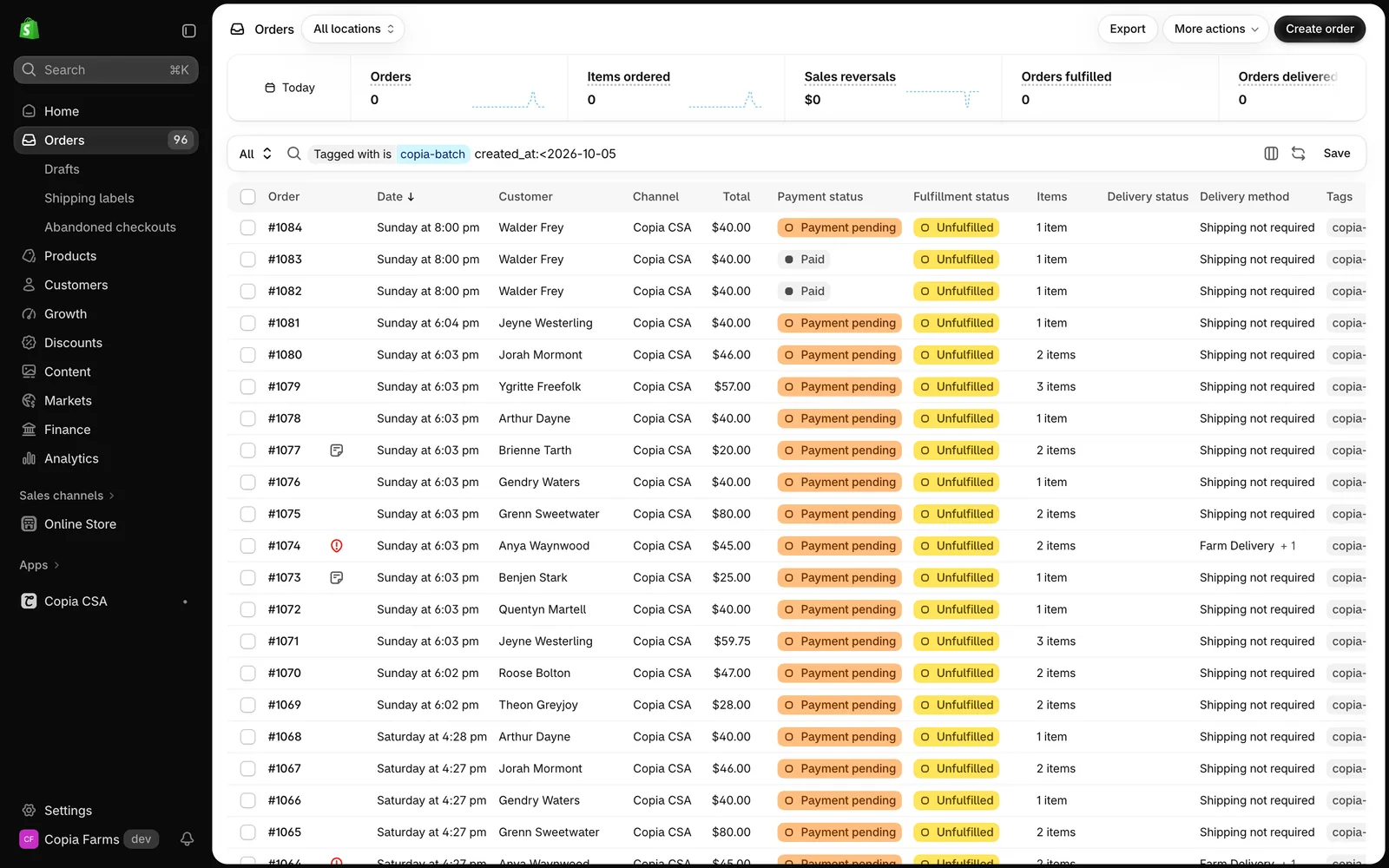 Shopify’s Orders page, filtered by the
 copia-batch tag.
One order can cover several deliveries. A member who pays every 4 deliveries gets one order for all four, tagged with the first delivery’s date.
Cancelling and refunding
This is the part most likely to catch you out:
- Cancelling an order in Shopify tells Copia. The member’s box goes back to unbilled, and the next billing run bills it again. Any credit used on that order is returned to their balance. For a paused member the box goes back on hold, and for a cancelled member it’s cancelled.
- Refunding an order in Shopify does not tell Copia. The box stays paid and still appears on the pack list.
So:
- To not send the box and give the money back: skip the delivery in Copia, then refund the order in Shopify.
- To give money back but still send the box (say, a short week): refund in Shopify, or add credit in Copia, but not both.
- To bill the member again: cancel the order in Shopify. Their box will be included in the next billing run for that date.
Editing orders in Shopify
Changes you make to an order in Shopify, like adding items or changing amounts, stay in Shopify. Copia doesn’t know about them, and the pack list still shows what Copia has for that box. To change what a member gets, change it in Copia. If they’ve already been invoiced, use Update invoice on their member page.
Customers
- Contact changes sync to Copia. If you change a member’s name, email or phone on their Shopify customer, their member record updates too. A phone number is never cleared this way.
- Deleting a customer in Shopify doesn’t remove the member in Copia, but Copia can no longer bill them. Cancel the membership in Copia first.
- Shopify marketing settings are separate. Copia’s member emails (reminders, invoices, box contents) are service emails and go out regardless of email marketing consent.
Pay-in-person signups
Members who choose pay in person at signup don’t get any Shopify order at signup. Their first order appears when you run billing with Collect on-site. Turn on the Pay-at-pickup signup admin alert in Settings → Notifications so you know when someone signs up this way.