Community and feature requests
Ask other Copia farms how they do things, share what works, and vote on what Copia builds next.
Community is a place inside Copia for farms that use Copia. Ask how other farms handle holds or pickups, share what works for you, and tell Trevor, who runs Copia, what to build next. Find it under Copia → Community.
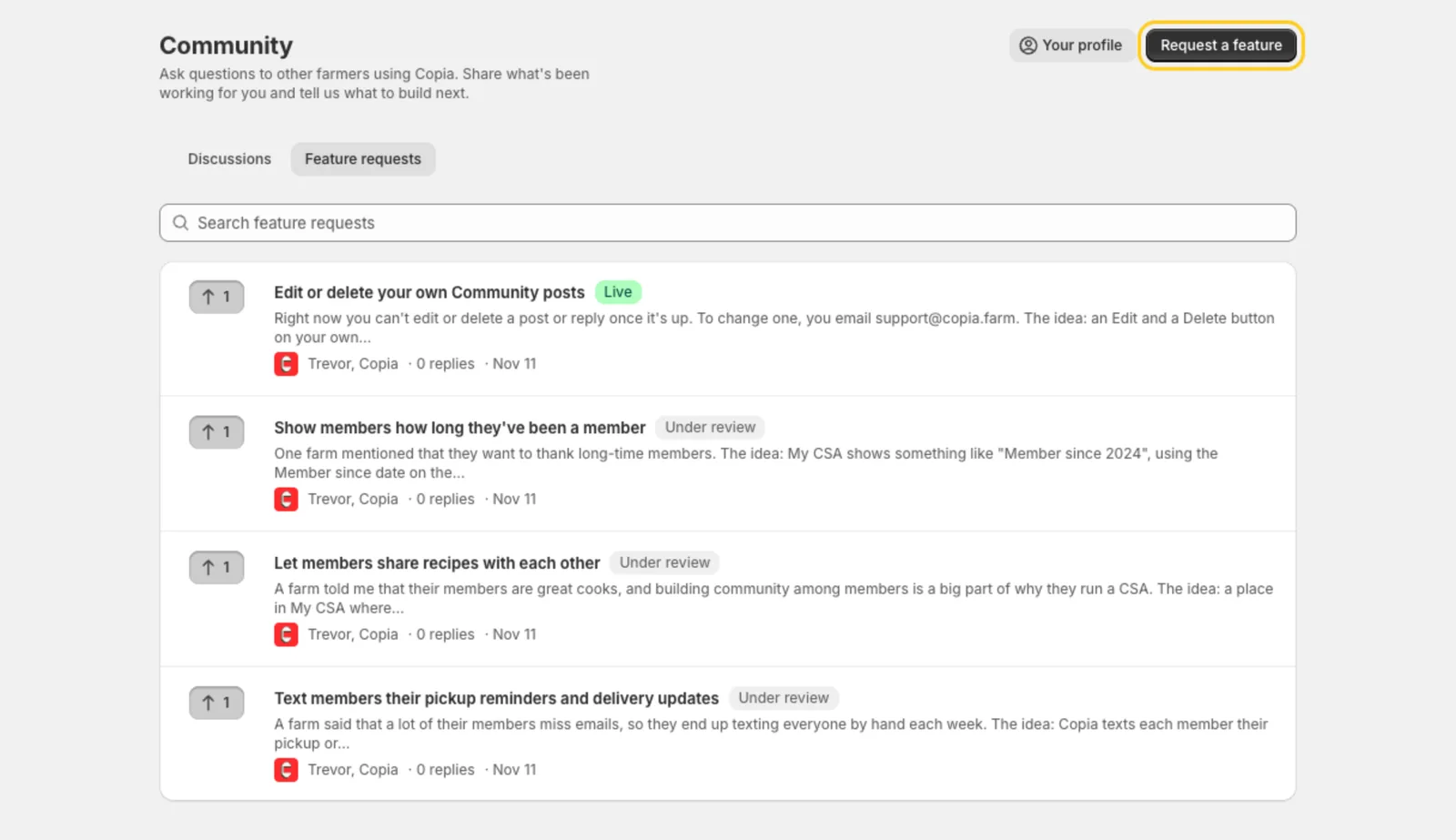
Community has two tabs:
- Discussions: questions and tips between farms. The newest activity is at the top, and you can filter by category: Billing, Pickup & delivery, Members, Marketing, Growing, or Other.
- Feature requests: ideas for Copia. The requests with the most votes are at the top.
Find a thread
Type in the search box at the top of the tab. The list narrows as you type. Search looks through titles, posts, replies, and the names of whoever started the thread or replied to it (their farm, or the name on their profile). Every word you type has to appear somewhere in the thread, in any order.
On Discussions, pick a category next to the search box to see only that category. Click a thread to open it.
Ask a question or share a tip
- Go to Copia → Community and click Start a discussion.
- Give it a Title, pick a Category, and write your Message.
- To show what you mean, click Add screenshots or drag images onto the box.
- Click Post.
Your farm follows the thread, so you get an email when someone replies.
Tip: You can add up to 4 screenshots to a post or reply. Each can be a PNG, JPG, WebP or GIF, up to 5 MB. Click a screenshot in a post to see it full size.
Format your post
The Message box, the Your reply box and the request form all have a small toolbar:
- Bold and italic: select some words and click the bold or italic button. Or press ⌘B or ⌘I (Ctrl+B or Ctrl+I on Windows).
- Link: select the words to link and click the link button. Then paste the web address over the “https://” that appears. Links you paste on their own become clickable too, including links to a section of this Help Center.
- Lists: select some lines and click the bulleted list or numbered list button. Click it again to take the list off.
Click Preview to see how your post will look. Click Write to go back to typing.
Request a feature
- Go to Copia → Community → Feature requests and click Request a feature.
- Under What should Copia do?, say what you’d like in a few words, for example “Text members their pickup reminder”.
- Under Why it would help your farm, say what it would fix for you.
- Click Post.
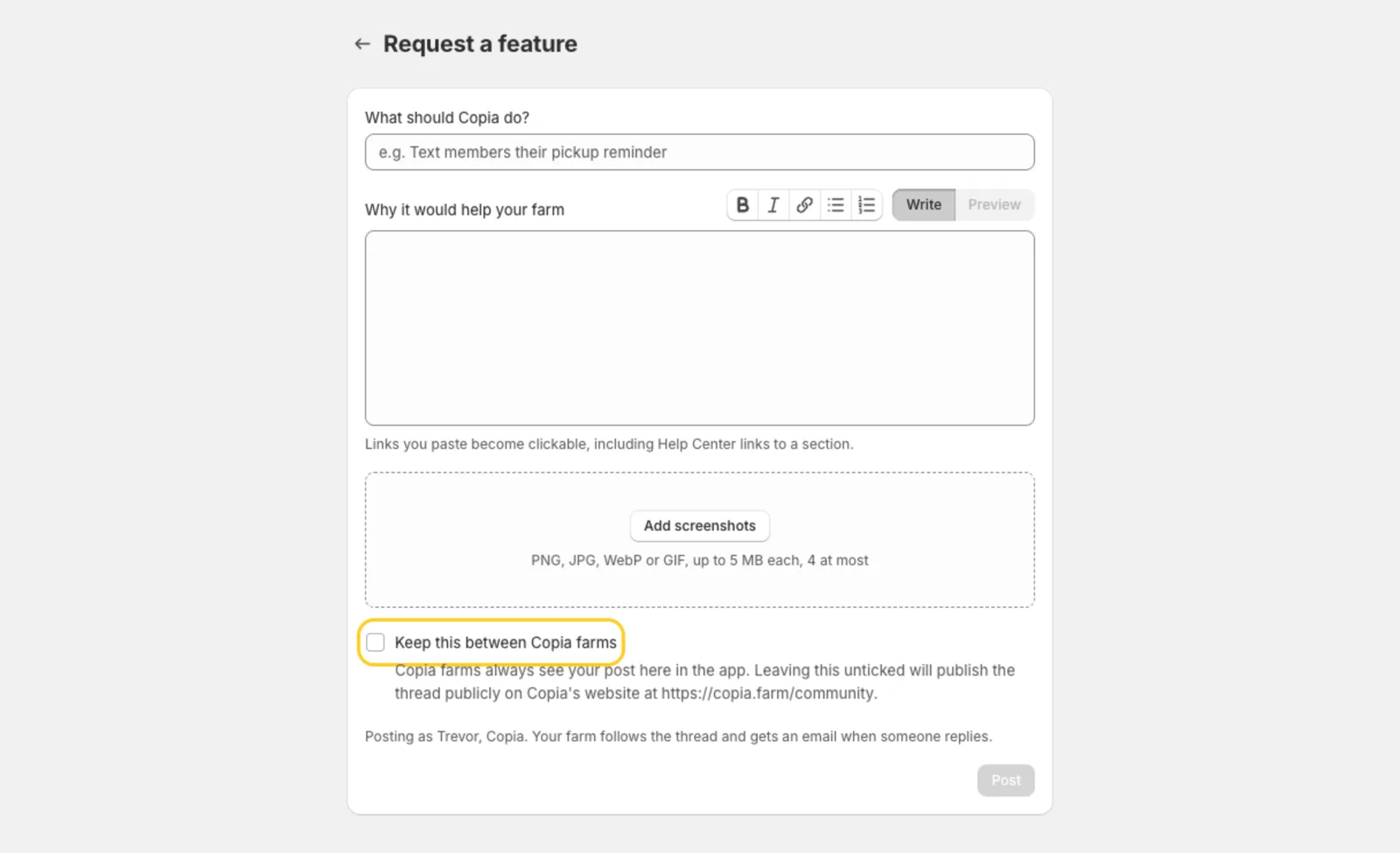
Asking for a feature counts as your farm’s vote for it. Before you post, search Feature requests to see if another farm already asked. If they did, vote for theirs instead, so the votes add up in one place.
Vote for a feature
Click the up-arrow button next to a request, on the list or on its page. The number on it is how many farms want it, and the button stays pressed once your farm has voted. Each farm gets one vote per request. Click it again to take your vote back.
Each request shows where it stands:
- Under review: Copia hasn’t decided on it yet.
- Planned: Copia plans to build it.
- Building: Copia is building it now.
- Live: it’s in Copia now. Every farm that voted for it gets an email.
Reply to a thread
Open a thread, write in Your reply, and click Reply. You can add screenshots to a reply too, or post just a screenshot. Replying makes your farm follow the thread.
When Trevor marks a reply as the answer, it shows Answer and turns green, and the thread shows Answered in the list.
Get emails about a thread
When your farm follows a thread, it gets an email each time someone else replies. The email goes to the Contact email in Copia → Settings → Farm profile (see Farm settings). If that’s blank, no email is sent.
The button at the top right of a thread shows where you stand:
- Follow: you’re not following. Click it to start getting emails.
- Following: you’re following. Click it to stop.
Edit or delete your post
You can change or remove anything your farm posted.
- Open the thread.
- Under your post or reply, click Edit.
- Change the text or screenshots. On a thread you started, you can also change the title, the category, and whether it’s kept between Copia farms. Click Remove under a screenshot to take it off.
- Click Save.
An edited post shows Edited and the date, next to the date you posted it.
To remove a post, click Delete under it, then Delete again to confirm. Deleting a reply removes just that reply. Deleting a thread you started removes the whole thread, with every reply from other farms and, for a feature request, every vote. This can’t be undone.
Tip: To fix a mistake in a thread other farms have replied to, use Edit instead of Delete, so their replies stay.
Set how you show up
- Go to Copia → Community and click Your profile at the top.
- Under Your name, type your first name. Posts show it with your farm, like “John @ Green Acres Farm”. Leave it blank to show just your farm’s name.
- Under Picture, pick one:
- Initials: your initials on your farm’s Primary color, from Copia → Settings → Brand colors.
- Farm logo: the logo in Copia → Settings → Farm profile. If you haven’t added a logo yet, add it there first.
- Upload a photo: pick a photo of yourself or your farm.
- Click Save.
The top of the window shows exactly how your posts will look. Your name and picture change on every post and reply your farm has made, in Copia and on Copia’s website. It’s one profile per farm, so everyone posting from your Copia admin shares it.
Who sees your posts
Every farm that uses Copia sees your posts in the app, with your farm’s name.
Posts are public by default. Unless you tick Keep this between Copia farms, the thread is also published on Copia’s website at copia.farm/community, with your farm’s name and its replies. Anyone can read it there, including your members. To reply or vote, a farm opens it in Copia. On a public thread, click View on Copia’s website at the top to see it there.
Tick the box for anything you’d rather keep among farms, like prices or a member problem. Those threads show Copia farms only and never appear on the website. If you tick it later with Edit, or delete a public thread, it can take a few minutes to leave the website. Community isn’t in your members’ My CSA page.
Posts from Trevor show Trevor with a green Copia badge. Farms on the Founding Farm plan show a blue Founding Farm badge. If Trevor hides a thread or reply, it disappears from the app and the website.