Pack lists and labels
Print a packing sheet for every box and labels for every bag, grouped the way you load the van.
Each delivery date has a printable pack list (what goes in every box) and pack labels (a sticker for each bag or box). Open them from Harvest Planning → your delivery date → Print.
The pack list
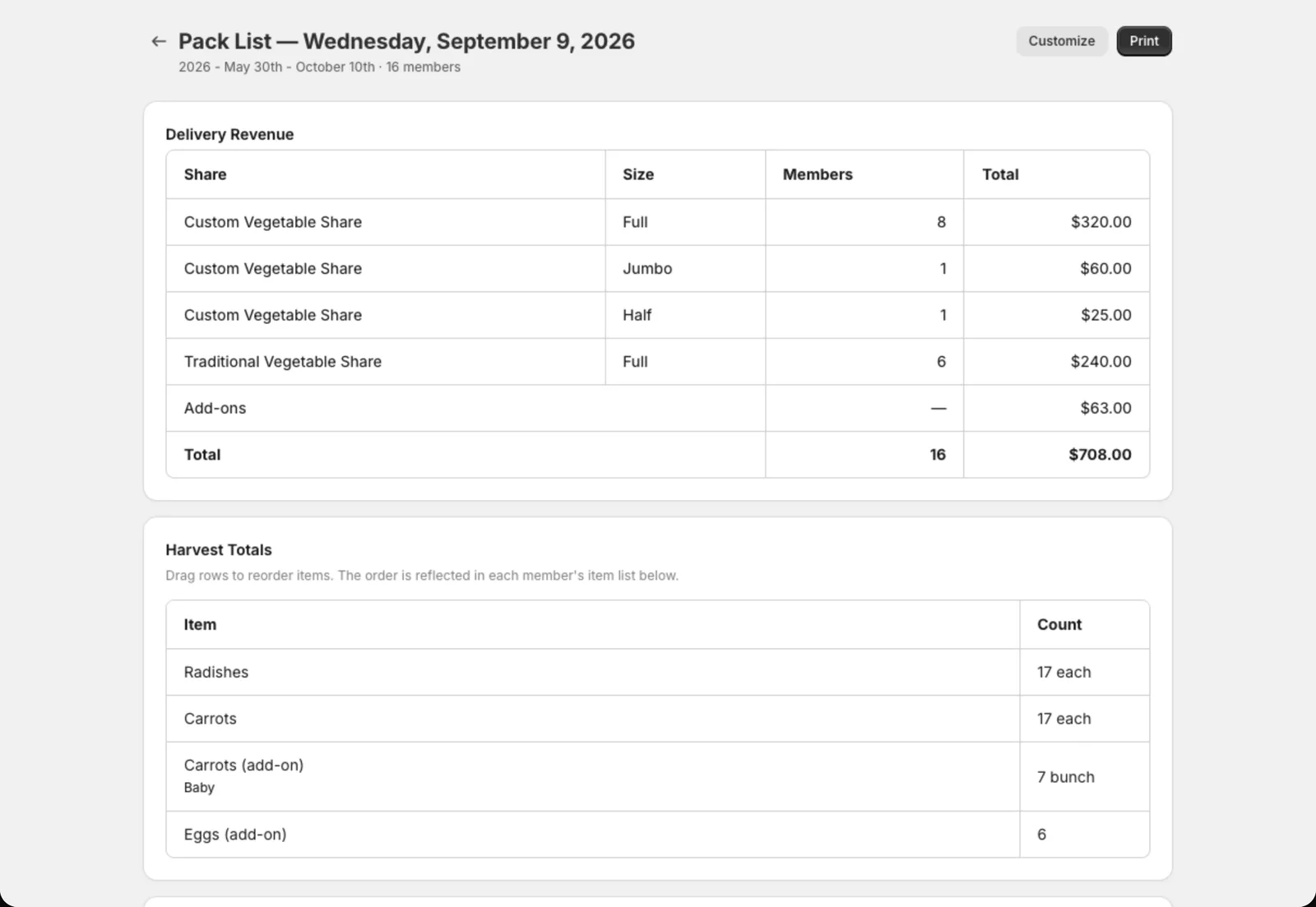
The pack list starts with Harvest totals: everything you need for the day, by item. Then there’s one section per pickup location or delivery route, with a slip for each member showing:
- Their size and box contents (including any swaps or build-my-box choices)
- Add-ons for this delivery
- Contact details (phone first, then email)
- Delivery instructions, dietary notes and never include items
Only boxes that are actually going out appear. Skipped, held and cancelled boxes are left off.
Filter and customize
- Use the Pickup location, Home delivery and Delivery route filters to print one group at a time.
- Click Customize to reorder or hide sections of each slip, like hiding Contact if your packers don’t need it.
Once you’ve made delivery routes, home deliveries are sorted in stop order and each slip shows “Route · Stop #N”. Anyone who isn’t on a route yet shows up in a highlighted Not on a delivery route section, so nobody gets missed.
Pack labels
Labels print one per box, with the member’s name, size, location or route stop, and add-ons.
- Choose 4×2 or 4×4 labels to match your label sheets.
- Delivery labels are sorted by route and stop.
- Van loading order prints each route last stop first. Load in that order, and the first stop’s box ends up at the door.
Click Print labels and print from your browser.
Tip: On a route’s page, the Pack list and Labels buttons print just that route. That’s handy when each driver packs their own van.