Pickup check-in
Check members off as they collect their boxes, from a laptop at the stand or right on Shopify POS.
On pickup day, check members off as they collect their boxes. You’ll know who’s been and who hasn’t, and you can take payment from anyone who pays in person.
There are two ways to do it: the Check-in Station in Copia (any laptop or tablet), or the Copia tiles on Shopify POS.
Check-in Station
- Go to Copia → Check-in, or click Open check-in station on your dashboard.
- Pick the Delivery date. If you have more than one pickup site, choose the Location. Each one shows how many members have checked in so far.
- As members arrive, search their name and click Check In.
Run billing first. Members only appear here once their box for that date has been billed. If billing hasn’t run, Copia tells you how many members are waiting and links you to Billing.
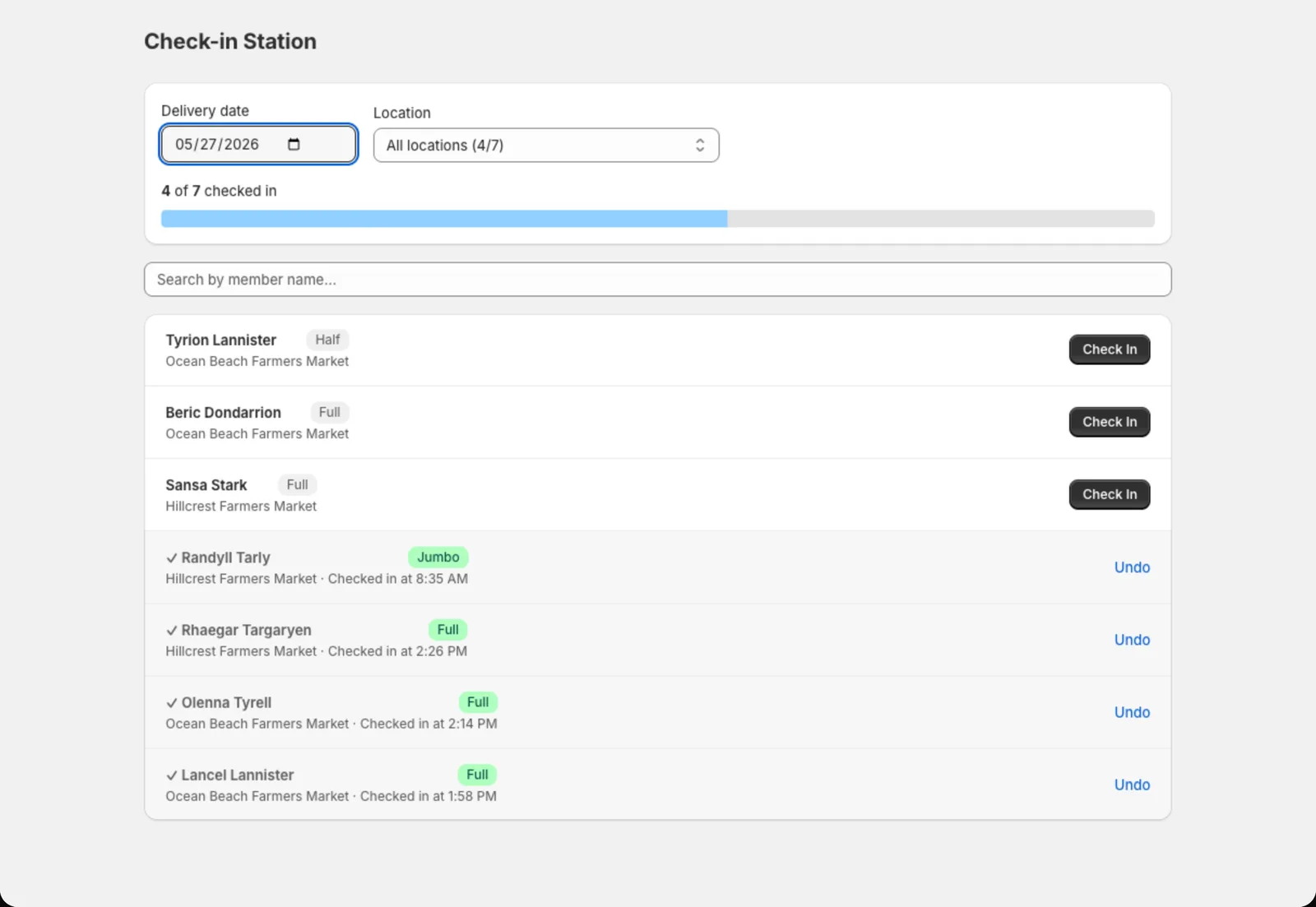
Members who still owe money show Payment due. Take payment, then click Mark paid & check in. Checked someone in by mistake? Click Undo.
When everyone’s been through, you’ll see All done!
Shopify POS
If you sell at a market with Shopify POS, add the Copia tiles to your POS home screen:
- Today: today’s pickup list. Tap a member to check them in, take payment, or mark them as a no-show (Skip — didn’t show). If a member’s box needs paying, it’s added to the cart and they’re checked in automatically once they pay.
- Member Lookup: search any member by name or email to see their status, upcoming box and how they pay.
To add them, open Shopify POS, edit your home screen, and add the Copia tiles from the list of app tiles.
Tip: Members who chose pay in person at signup get no Shopify order until you bill them. Use Collect on-site in Billing to create unpaid orders you can take payment for at pickup.