Track where your food comes from
Record which farm each item in your boxes came from, with lot codes and invoice numbers, and find every member who got a batch.
If you buy food from other farms to fill your boxes, Traceability keeps a record of where each item came from. For each delivery date you note the supplier, how much arrived and when, and the lot code and invoice number. If a supplier ever recalls something, you can find every member who got it in a couple of clicks.
Tip: The FDA’s food traceability rule (FSMA 204) asks businesses that receive leafy greens, tomatoes, herbs, melons, cucumbers and other foods on its traceability list to keep these receiving records, starting July 20, 2028. The rule has exemptions, for example for small businesses and for food bought straight from a farm. Check the FDA’s guidance to see what applies to you.
Turn on Traceability
Traceability is off until you turn it on.
- Go to Copia → Settings.
- Under Navigation, tick Traceability.
- Click Save settings.
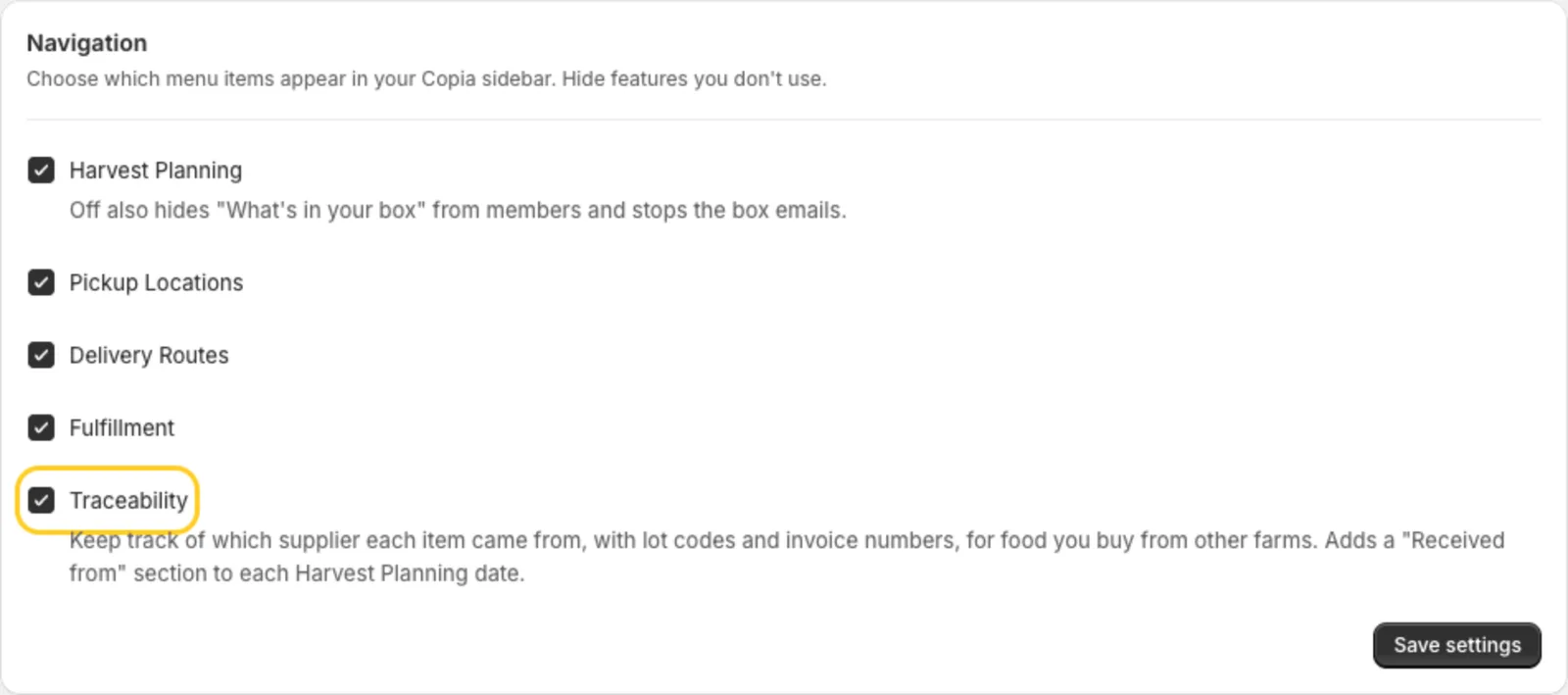
Traceability now shows in the Copia menu, and every date in Harvest Planning gets a Received from section. Turning it off again hides both. Your records are kept.
Add your suppliers
Go to Copia → Traceability and click Add supplier. Enter the farm’s Name and Address. The address is where the food came from, which is the part a traceability record needs. Contact name, Phone, Email and Notes are optional.
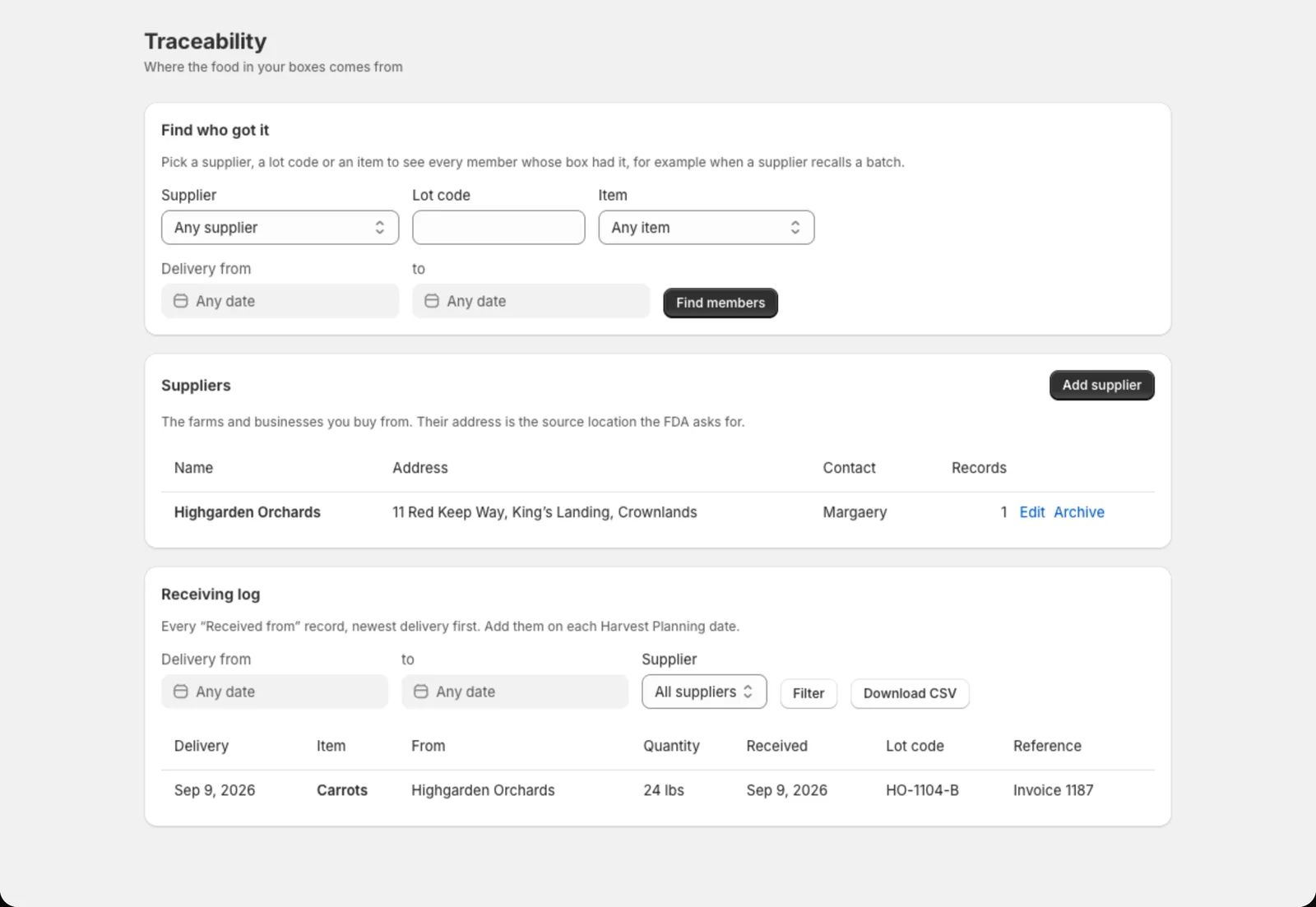
You can also add a supplier on the spot while recording a delivery (see below).
- Edit changes a supplier’s details.
- Archive takes a supplier off the list you pick from, but keeps every record that names them. Restore brings them back.
- Delete shows only for a supplier with no records.
- Each name can only be used once. If you type the name of a supplier you already have, Copia uses that supplier.
Record what you received for a delivery
- Go to Copia → Harvest Planning and click a delivery date.
- Scroll to Received from and click Add record.
- Pick the Item. The list has the items planned for this date and your add-ons. Pick Something else… to type a name.
- Pick who it came From, or pick + New supplier and enter their name and address.
- Fill in what you have:
- Quantity and Unit, for example 12 lbs or 3 cases.
- Received on: the day it arrived.
- Lot code: from the case label or the invoice, if there is one. If someone other than the supplier assigned it, put their name in Lot code assigned by.
- Reference: the paperwork it came with (Invoice, Packing slip, Bill of lading, Receipt or Other) and its Number.
- Received at: leave it blank when it arrived at your own address.
- Click Save.
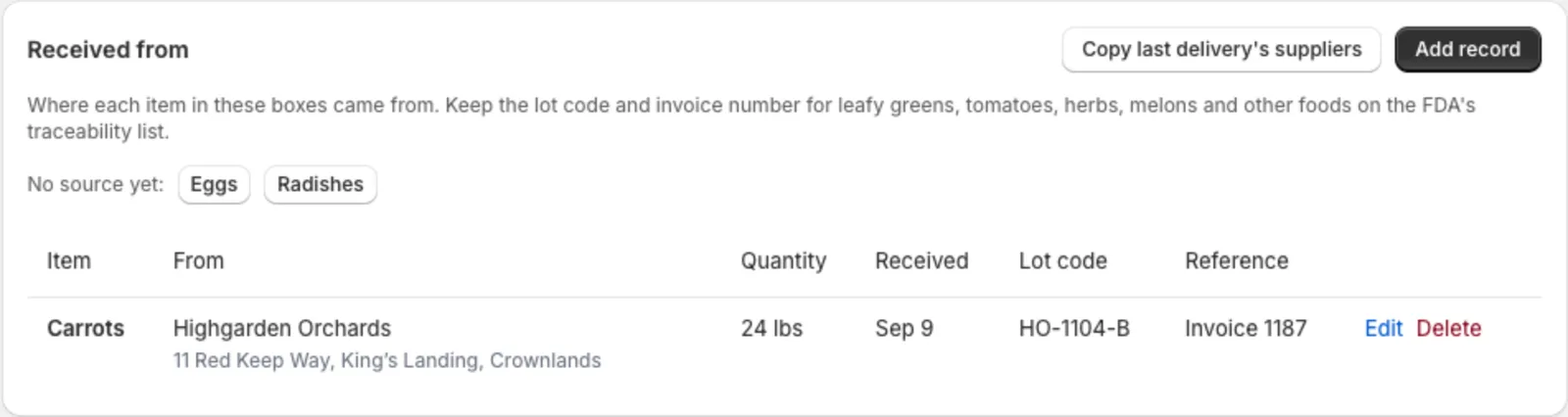
Items with no record yet are listed under No source yet. Click one to start a record for it. An item can have more than one record, for example when two farms each sent you some.
Records belong to the delivery date, not to one share type, so a date with several share types or seasons has one Received from list.
Tip: Buy from the same farms every week? Click Copy last delivery’s suppliers. It copies the records from your last delivery that has any, for items that don’t have one yet, and moves the received dates forward to match. Lot codes and invoice numbers change with every batch, so those are left blank for you to fill in.
Look back at what you received
The Receiving log on the Traceability page lists every record, newest delivery first: the delivery date, item, supplier, quantity, date received, lot code and reference.
To narrow it down, set Delivery from and to, pick a Supplier, and click Filter. The log shows the latest 200 records, so narrow the dates to see older ones.
Click Download CSV to save every record for those filters as a spreadsheet, not just the 200 on screen. Its columns follow what the FDA asks for: lot code, quantity and unit, product, who it came from and their address, where and when you received it, who assigned the lot code, and the invoice or other paperwork. If the FDA asks for your records, this is the file to send.
Find who got a recalled batch
When a supplier recalls a batch, use Find who got it at the top of the Traceability page.
- Pick a Supplier, type the Lot code, or pick an Item. You can use more than one, for example a supplier and an item.
- To narrow it to certain deliveries, set Delivery from and to.
- Click Find members.
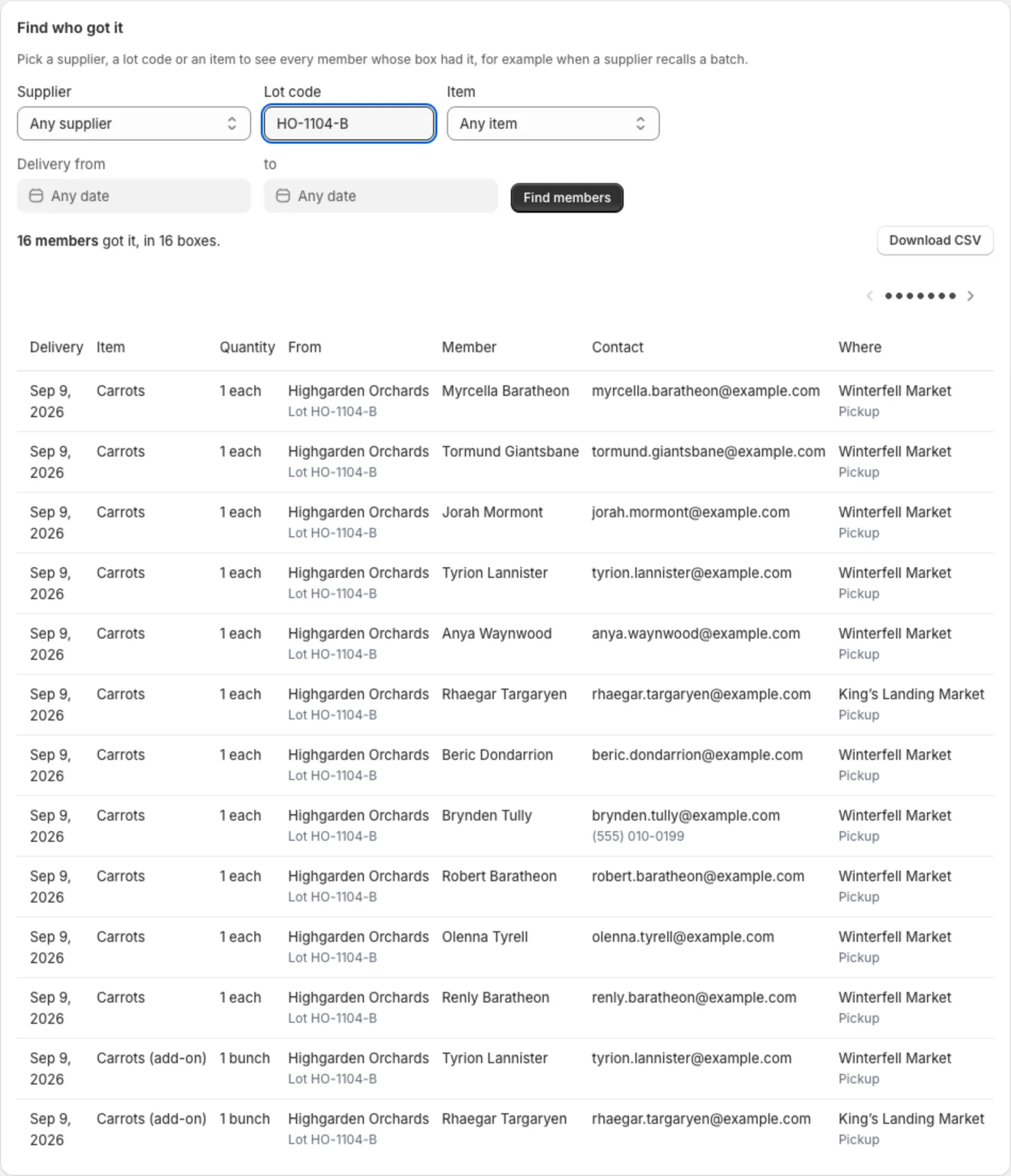
You’ll see how many members got it, and a row for each box: the delivery date, the item and how much, the supplier and lot, the member’s email and phone, and their pickup location or delivery address. Click Download CSV to save the list, for example to email everyone.
- Lot codes match whatever the case, so “ho-1104-b” finds “HO-1104-B”.
- Members who swapped the item out, or have it under Never include, aren’t listed. A member who swapped it in is.
- Past deliveries show what was actually in each box when it went out, even if the member has changed or cancelled their share since. Upcoming deliveries show the boxes as they stand now.
- It covers the 60 most recent delivery dates that match. Narrow the dates to search further back.
Where else you’ll see it
- Pack list: under each item in Harvest totals, “From” shows the supplier and lot code, so packers know which batch is which.
- A member’s past boxes: when you open a past delivery on a member’s page, each item shows where it came from that week.