Member emails
The emails Copia sends for you, how to turn them on or off, and how to send from your own domain.
Copia emails members at the right moments: when they join, before pickup, when they’re billed, when something changes. Every email uses your farm name, logo and colours, and replies go to your contact email.
Choose which emails go out
Go to Copia → Settings → Notifications. Each email has an on/off switch and a Send test button that sends a copy to you.
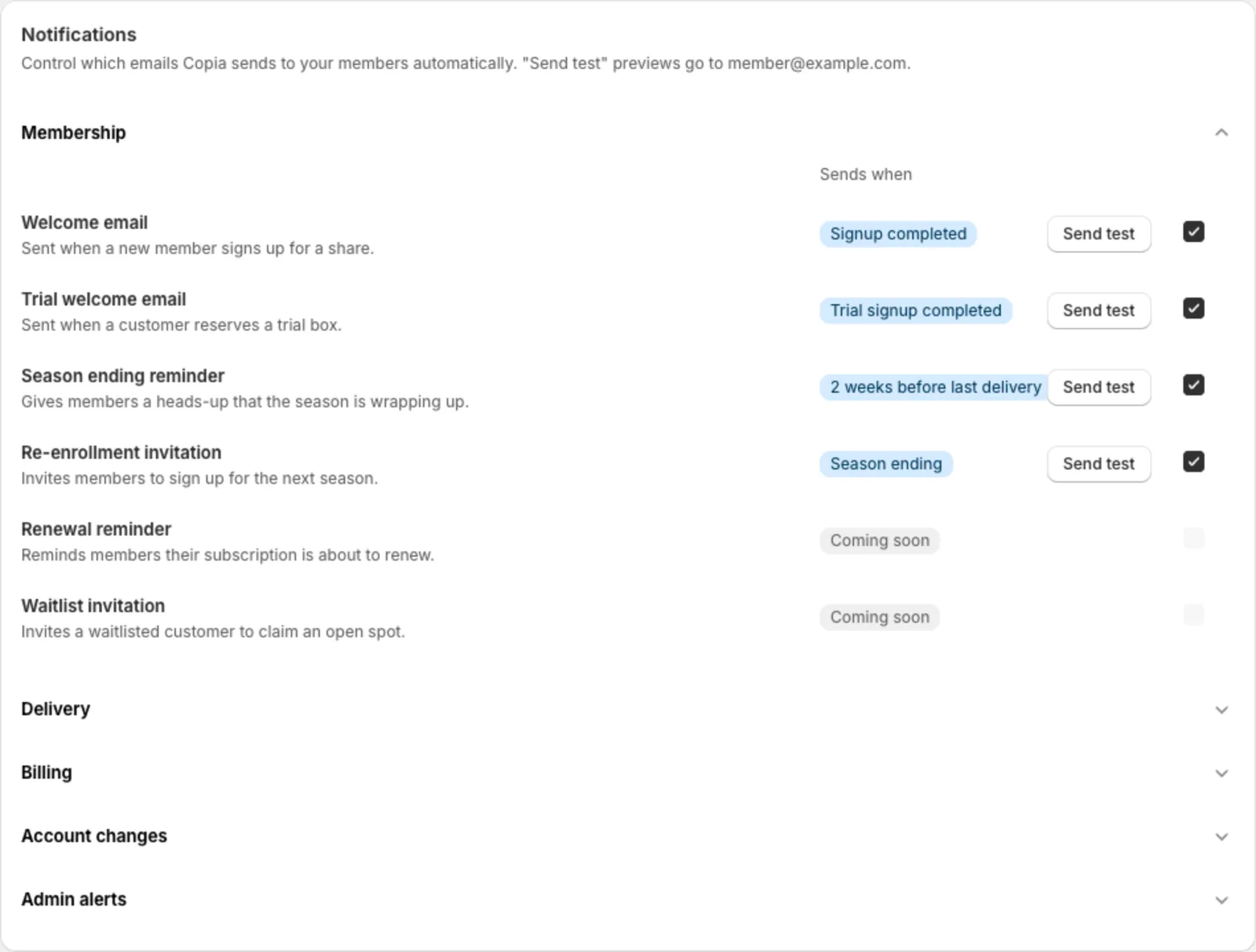
Membership
- Welcome email: when someone signs up
- Trial welcome email: when someone reserves a trial box
- Season ending reminder: a heads-up two weeks before the last delivery of a seasonal (not year-round) season
- Re-enrollment invitation: invites members back for next season. It only goes out when you click Re-enroll invite on the Seasons page.
Delivery
- Pickup reminder and Delivery reminder: 48 hours before, 24 hours before, or the morning of. You choose.
- Delivery notification (“what’s in your box”): sent when you click Send delivery notifications on a delivery date in Harvest Planning. The timing option in Settings doesn’t send it automatically yet.
Billing
- Payment failed: when Copia couldn’t create a member’s bill during a billing run
- Billing confirmation: for automatic card charges, so it isn’t sent today. Members get Shopify’s own receipt when they pay an invoice. See Billing members.
Account changes
- Confirmations when a member pauses, skips or unskips
Admin alerts (sent to you)
- Member cancelled, Pay-at-pickup signup, and Online signup
Scheduled emails go out at 8:00 AM in your farm’s timezone (Settings → Farm timezone).
One-off messages
To message everyone getting a box on a certain day, open the date in Harvest Planning:
- Send delivery notifications: this week’s box contents, plus an optional note and recipe link
- Email members: anything you like, such as a change of pickup spot or a farm update. Use Send test to me first.
To invite a whole season back, use Re-enroll invite on the Seasons page.
Send from your own domain
By default, emails come from Copia’s address with your farm’s name. To send from your own domain (like [email protected]):
- In Settings → Email sending, enter a Sending domain, like
mail.yourfarm.com, and click Connect domain. - Copia shows a few DNS records. Add them where your domain is managed (GoDaddy, Squarespace, Cloudflare…).
- Click Check verification. It can take a few minutes up to a few hours.
- Once it says Domain verified, choose the From address members will see.
Tip: Sending from your own domain makes it less likely your emails end up in spam.